
Choosing the best image format for web pages can silently make or break your website speed — and a slow website means lower Google rankings, higher bounce rates, and fewer conversions. But with so many formats to choose from (WebP, JPG, PNG, SVG, AVIF…), it’s hard to know which one to actually use.
This guide cuts through the confusion. By the end, you’ll know exactly which format to use for every type of image on your website.
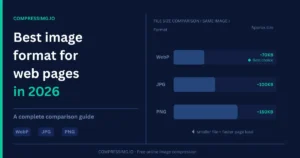
The Short Answer (If You’re in a Hurry)
- Photos and complex images → WebP (first choice) or JPG (fallback)
- Logos, icons, simple graphics → SVG (first choice) or PNG (fallback)
- Screenshots with text → PNG
- Transparent backgrounds → WebP or PNG
- Animated images → WebP (not GIF)
Now let’s explain why.
The 5 Best Image Formats for Web Pages Compared
1. WebP — The Best All-Around Choice for 2026
WebP is a modern image format developed by Google specifically for the web. It delivers smaller file sizes than both JPG and PNG without a noticeable drop in quality.
Key advantages:
- 25–35% smaller than JPG at the same visual quality
- Supports transparency (like PNG) and animation (like GIF) in a single format
- Supported by all major browsers since 2020: Chrome, Firefox, Safari, Edge
When to use WebP:
- Hero images and banners
- Product photos in e-commerce
- Blog post featured images
- Any photo where you currently use JPG
When NOT to use WebP:
- When you need to send an image file to a client or for print — JPG or PNG is more universally compatible outside the browser
Bottom line: If you’re not already using WebP on your website, switching from JPG to WebP is the single highest-impact change you can make for page speed.
2. JPG (JPEG) — The Safe, Universal Fallback
JPG has been the web standard for photos for decades. It compresses photographs efficiently by slightly reducing color detail in ways the human eye barely notices.
Key advantages:
- Universal support — works everywhere, every device, every browser
- Great for photographs and complex images with lots of colors
- Easy to share, email, and open on any computer
Key disadvantages:
- No transparency support
- Larger file sizes than WebP at the same quality
- Each time you re-save a JPG, it loses a little quality (lossy compression)
When to use JPG:
- Photos when WebP is not an option
- When you need to email or share images outside the browser
- Legacy systems that don’t support WebP
When NOT to use JPG:
- Logos, icons, or graphics with text (edges look blurry)
- Images with transparent backgrounds
- Screenshots (text looks fuzzy)
3. PNG — Best for Crisp Graphics and Transparency
PNG uses lossless compression, meaning it preserves every pixel exactly. This makes it ideal for images where sharpness and accuracy matter more than file size.
Key advantages:
- Supports transparent backgrounds
- Lossless — text and edges stay perfectly crisp
- Great for screenshots, infographics, and logos
Key disadvantages:
- Significantly larger file sizes than JPG or WebP for photographs
- Not ideal for photos — the file size benefit disappears
When to use PNG:
- Logos and brand graphics (especially if you need a transparent background)
- Screenshots containing text
- Infographics with text and sharp edges
- Icons that can’t be in SVG format
When NOT to use PNG:
- Photographs or images with lots of colors — the file will be unnecessarily large
- Hero images or banners (use WebP instead)
4. SVG — The Best Choice for Logos and Icons
SVG (Scalable Vector Graphics) is not a photo format — it’s a vector format, meaning it’s made of mathematical shapes rather than pixels. This makes it infinitely scalable: an SVG logo looks perfectly sharp on a mobile phone screen and a 4K monitor alike.
Key advantages:
- Resolution-independent — looks perfect at any size
- Tiny file size for simple graphics
- Can be animated with CSS
- Can be edited in a text editor or design tool
Key disadvantages:
- Not suitable for photographs or complex images
- Can be more complex to implement than dropping in an image file
When to use SVG:
- Your website logo
- Navigation icons
- Simple illustrations and diagrams
- Social media icons in your footer
When NOT to use SVG:
- Photos or complex images with many colors
- If you need consistent rendering across older email clients
5. AVIF — The Future Format (Not Quite Ready Yet)
AVIF is newer than WebP and offers even better compression — often 50% smaller than JPG at the same quality. However, browser support is still not complete across all devices and platforms, and encoding AVIF files is significantly slower.
Our recommendation for 2026: AVIF is worth keeping an eye on, but WebP remains the safer and more practical choice for most websites. Unless you have a developer actively managing image pipelines, stick with WebP.
Side-by-Side Comparison Table
| Format | Best For | Transparency | File Size (vs JPG) | Browser Support |
|---|---|---|---|---|
| WebP | Photos, banners, featured images | ✅ Yes | ~30% smaller | ✅ All modern browsers |
| JPG | Photos (universal fallback) | ❌ No | Baseline | ✅ Universal |
| PNG | Logos, screenshots, graphics | ✅ Yes | Larger for photos | ✅ Universal |
| SVG | Logos, icons, simple graphics | ✅ Yes | Tiny | ✅ Universal |
| AVIF | Photos (future-facing) | ✅ Yes | ~50% smaller | ⚠️ Partial |
| GIF | (Legacy animated images) | ✅ Yes | Large | ✅ Universal |
How to Choose: A Simple Decision Guide
Step 1: Is it a photograph or complex image? → Yes: Use WebP (convert from JPG if needed) → No: Go to Step 2
Step 2: Is it a logo or simple icon? → Yes: Use SVG if available, otherwise PNG → No: Go to Step 3
Step 3: Does it need a transparent background? → Yes: Use WebP or PNG → No: Is it a screenshot with text? Use PNG. Everything else: WebP
Does Image Format Actually Affect SEO?
Yes — but not directly. Google does not rank you higher for using WebP over JPG. What matters is page speed, and image format is one of the biggest contributors to page speed.
Google’s Core Web Vitals — the set of metrics Google uses to evaluate page experience — are heavily influenced by how fast your images load. A page with 10 unoptimized JPGs will score lower than the same page with optimized WebP images, which can directly affect your search rankings.
In practical terms:
- Switching from JPG to WebP on a typical website reduces total image weight by 20–40%
- This alone can meaningfully improve your Largest Contentful Paint (LCP) score
- Better LCP score → better Core Web Vitals → potential ranking improvement
How to Convert Your Images to WebP
You don’t need to redesign your images from scratch. You just need to convert your existing JPGs and PNGs to WebP. There are a few ways to do this:
Option 1: Use a free online tool Upload your image to CompressIMG — it compresses and converts images online for free, with no software installation required. You can convert JPG and PNG files to optimized WebP in seconds.
Option 2: Use a WordPress plugin If you’re running a WordPress site, plugins like ShortPixel or Imagify can automatically convert all your uploaded images to WebP and serve the WebP version to browsers that support it, with a JPG fallback for those that don’t. See our full guide on how to compress images for WordPress.
Option 3: Use Squoosh (for technical users) Google’s free Squoosh tool (squoosh.app) lets you convert and compare different formats with a live side-by-side preview before downloading.
Common Mistakes to Avoid
Mistake 1: Using PNG for all images PNG is lossless, so people assume it’s “higher quality.” For photographs, this just results in enormous file sizes with no visible quality benefit. Use WebP or JPG for photos.
Mistake 2: Not compressing before uploading Even if you use the right format, an uncompressed WebP can still be several megabytes. Always compress images before uploading to your site. A good rule of thumb: most web images should be under 200KB, and hero images under 500KB.
Mistake 3: Using GIF for animations GIF files are extremely large. If you need animations on your website, use WebP (animated) or a short video file (MP4) instead. The same animation in MP4 can be 10× smaller than in GIF.
Mistake 4: Ignoring image dimensions Format and compression are only part of the equation. If you upload a 4000×3000px image and display it at 800×600px, the browser still downloads the full 4000×3000px file. Always resize images to the dimensions they’ll actually be displayed at before uploading.
Summary
In 2026, the best image format for most web pages is WebP — it offers the best balance of quality, file size, and browser support. Use PNG for graphics with transparency or screenshots with text, SVG for logos and icons, and JPG only when WebP isn’t an option.
The most impactful thing you can do right now: take your most important pages and convert the JPG images to WebP. You can do it for free at CompressIMG — no sign-up required.
Related reading: How to Compress Images for WordPress (Complete Guide)